Implement Asgardeo Login with Next.js 14 App Router
31st October, 2023
A step-by-step tutorial on setting up user authentication in Next.js 14 with Asgardeo using NextAuth and the App Router.
Introduction
Asgardeo and Next.js
Hello guys, in this tutorial, I am going to walk you through the general steps of setting up user auth in Next.js 14 with Asgardeo. For this, we'll be using the popular library Next Auth. In this article, we are going to use the app router, along with server components, which can become very confusing if not done correctly. If you want the source code, please follow the below link.
Before I get into the tutorial, I would like to brief you the login and logout flows of the application. First there should be an application configured in Asgardeo that accepts authentication requests. In the first step we will be going through that. After that, in our Next.js application, we should tell Next Auth to use an OAuth identity provider. The general login flow is as follows.
- User clicks the sign in button
- User is redirected to Asgardeo
- User signs in using Asgardeo credentials
- Asgardeo confirms the identity and redirects the user to the Next.js application with the required credentials.
The general log out flow is as follows.
- User clicks the log out button
- Auth cookies get cleared
- User is redirected to Asgardeo to be logged out from Asgardeo as well. (However this step is optional and I'll tell you know how to omit this step)
So now that you understand the general login and logout flows in the application, let's dive in!
Step 1
In this step, we will create the Asgardeo Application. First you need to create an Asgardeo account. After you are logged in, you will see this dashboard.
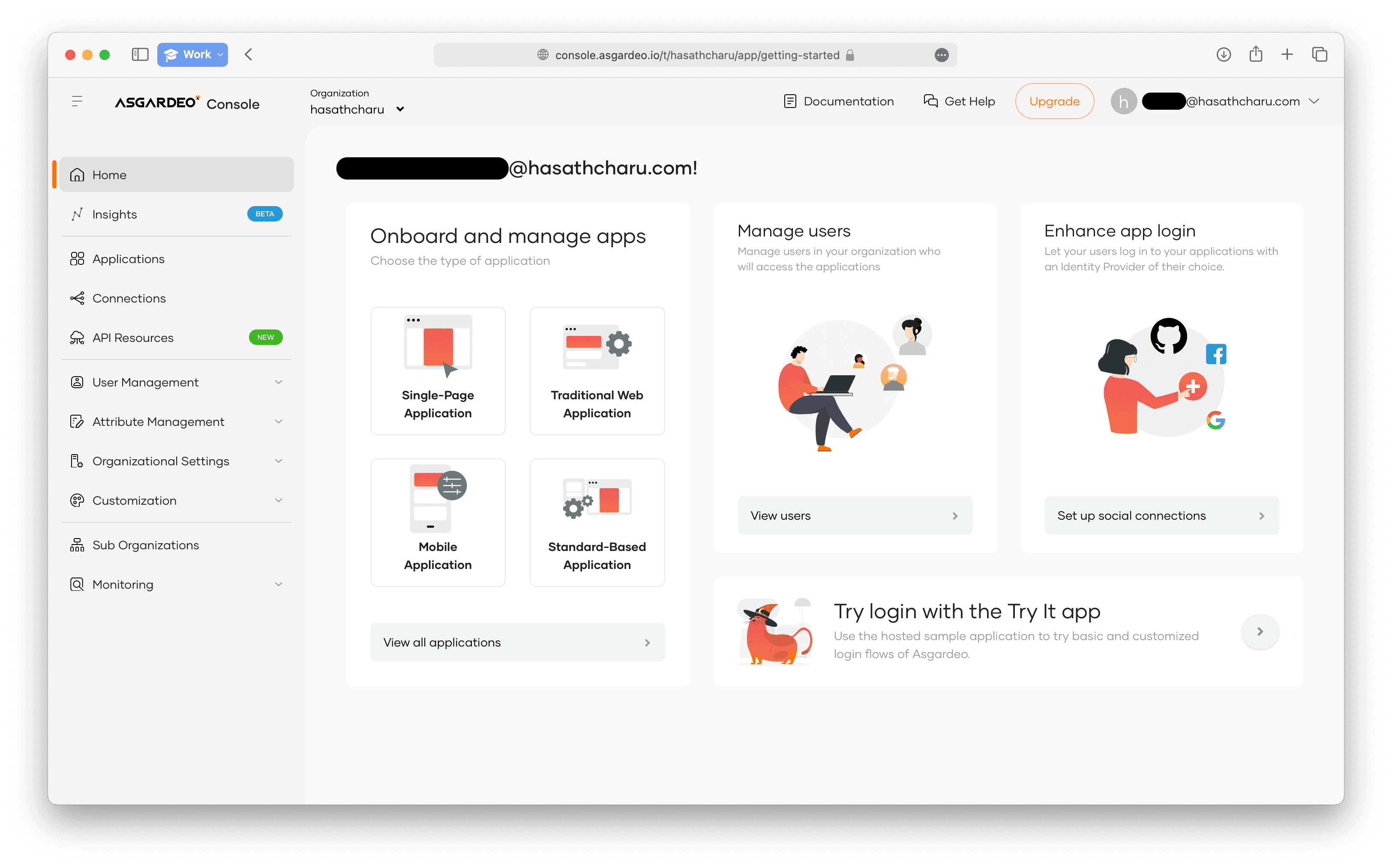
Asgardeo Account Dashboard
Then you need to head to the Applications tab, and create a new application.
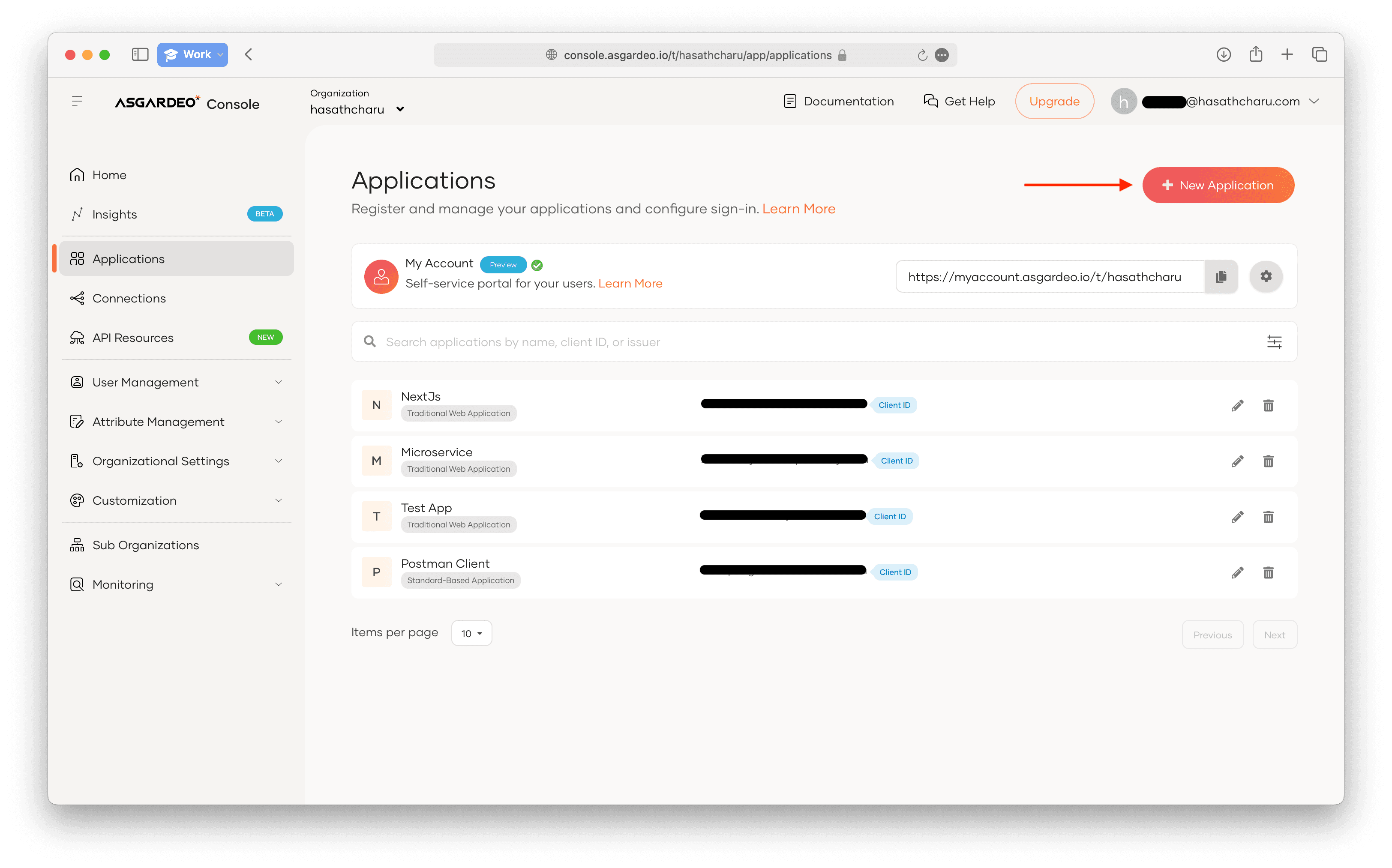
Creating a new application
After clicking "New Application", select Traditional Web Application. You might be wondering "Hey Haritha! traditional web applications are not Single Page Apps like React and it gives you a Client Secret which we don't have a secure place to store in!". Well you are correct if we were using bare React, but here, we are using Next.js, which comes with Server Side Rendering and Server Components. So rest assured, your client secret can be safely stored in the server environment.
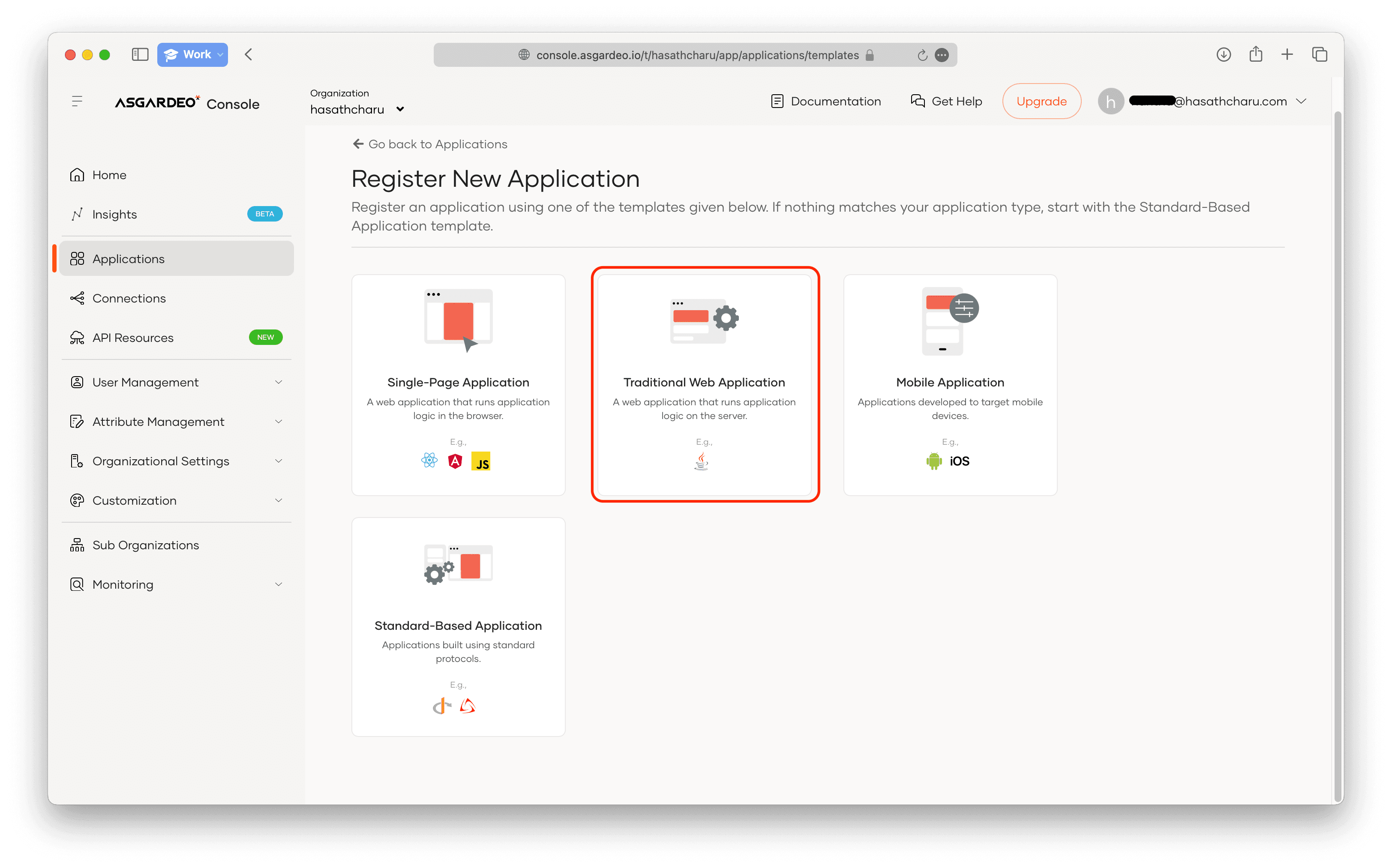
Choose traditional web application
Next, you need to give a catchy name for your app, leave the protocol as OpenID Connect, and add the callback URL as http://localhost:3000/api/auth/callback/asgardeo. Then go ahead and register your app.
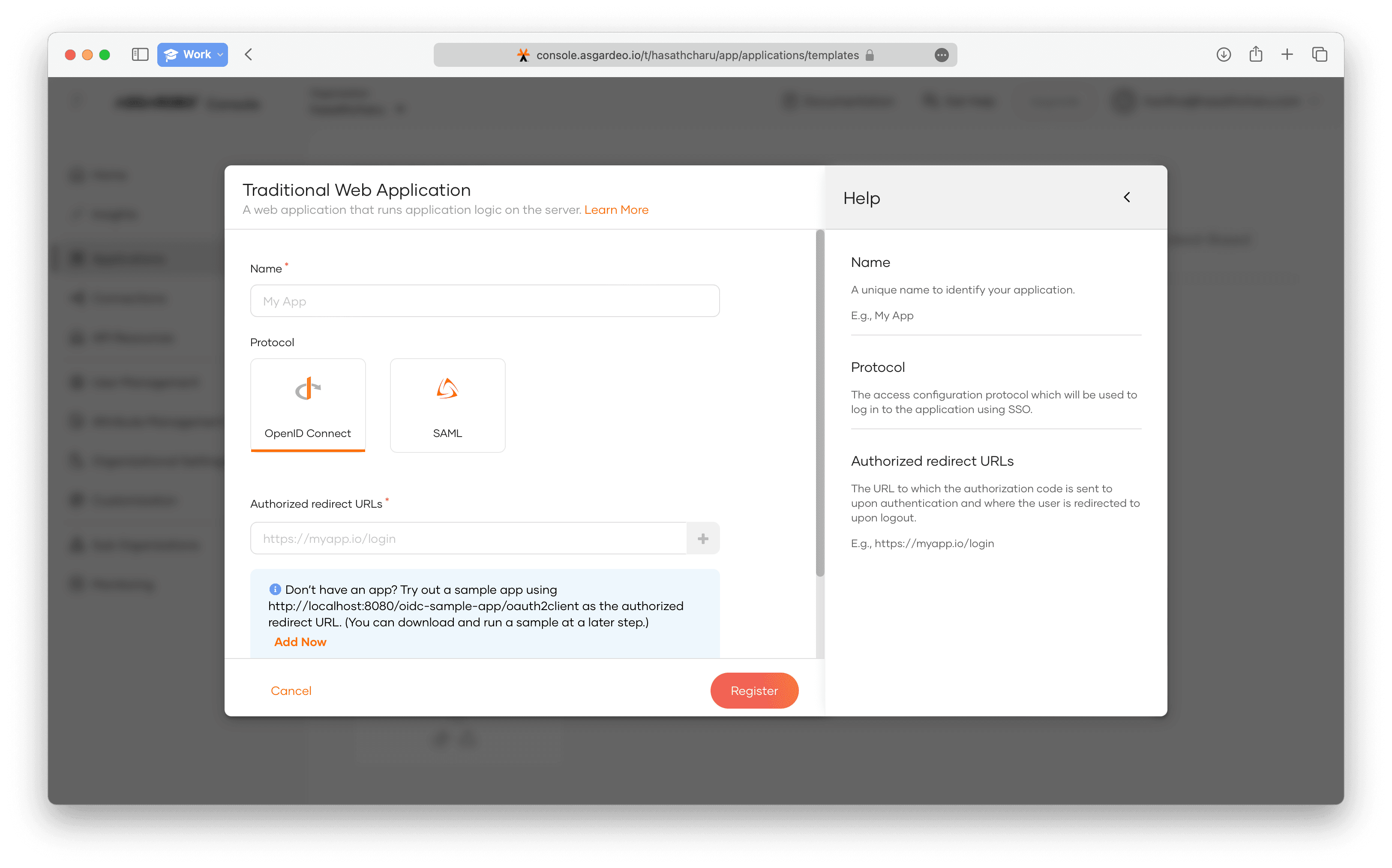
Registering a new application
Then you will see the created application, and then head over to the protocol tab to see your client_id and client_secret. Save these for later.
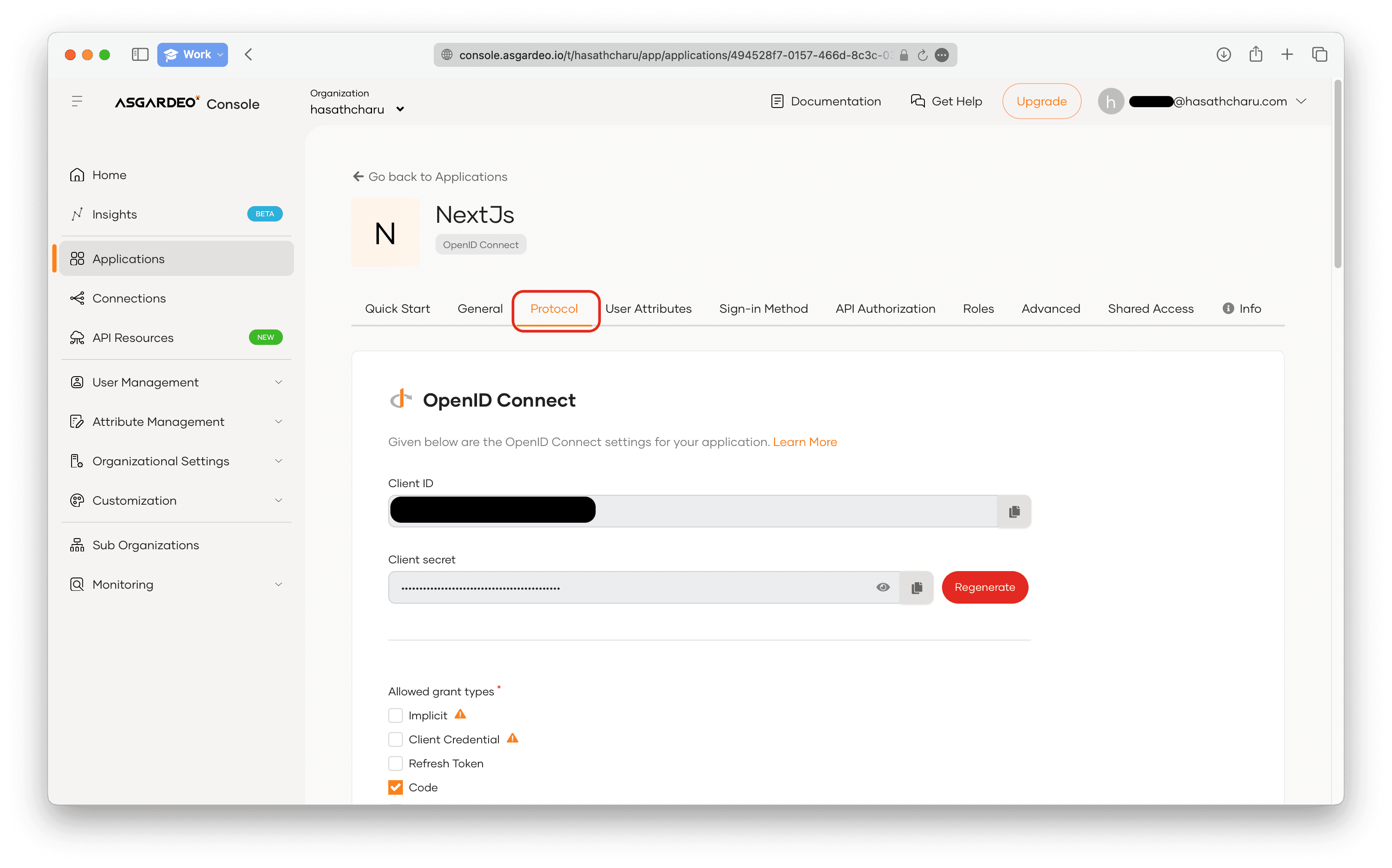
Protocol Tab of the Application
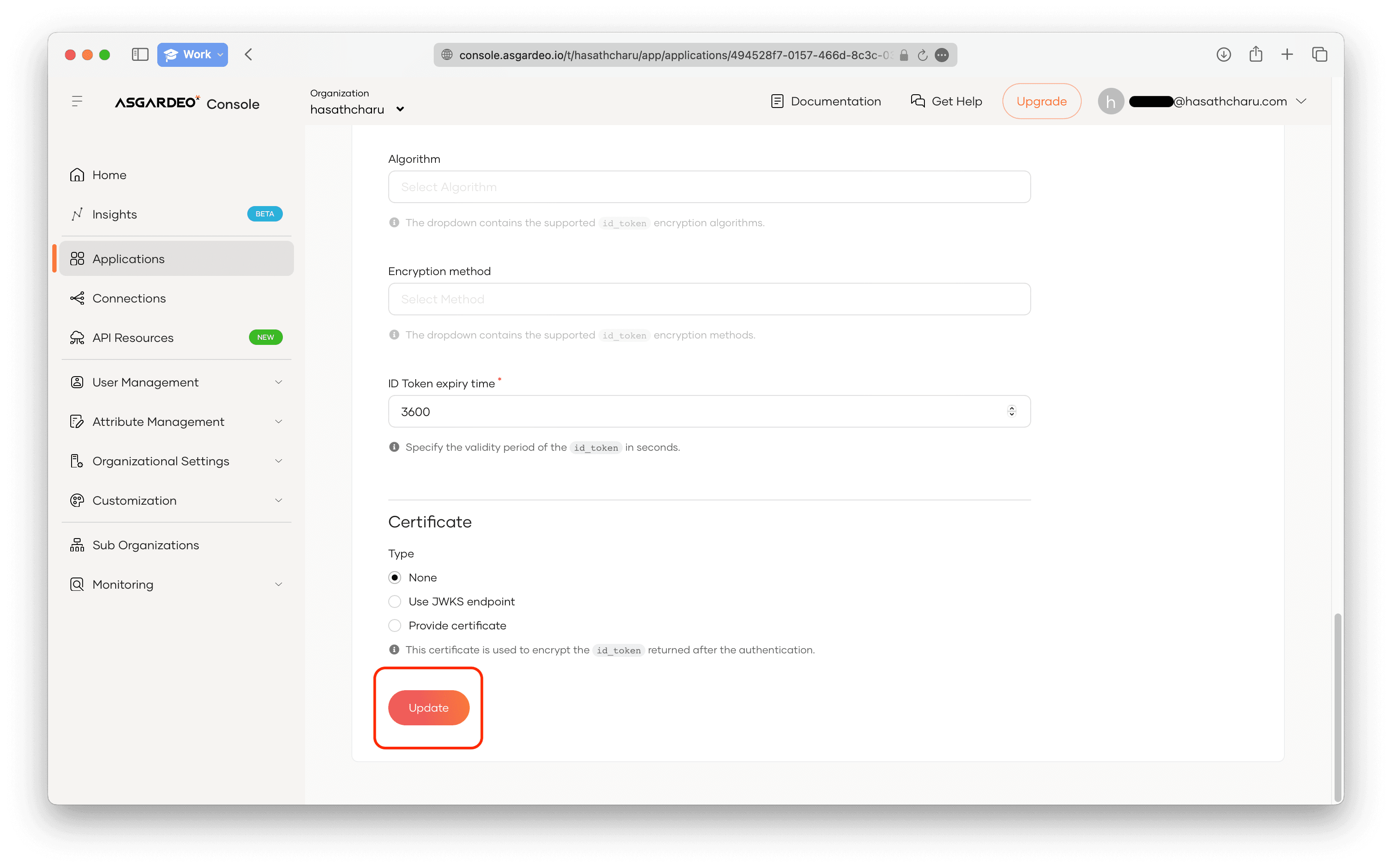
Here, scroll down and add another callback URL as http://localhost:3000 (this step is optional, this is only if you want to logout from Asgardeo within the application) and set the token type to JWT, and don't forget to hit update.
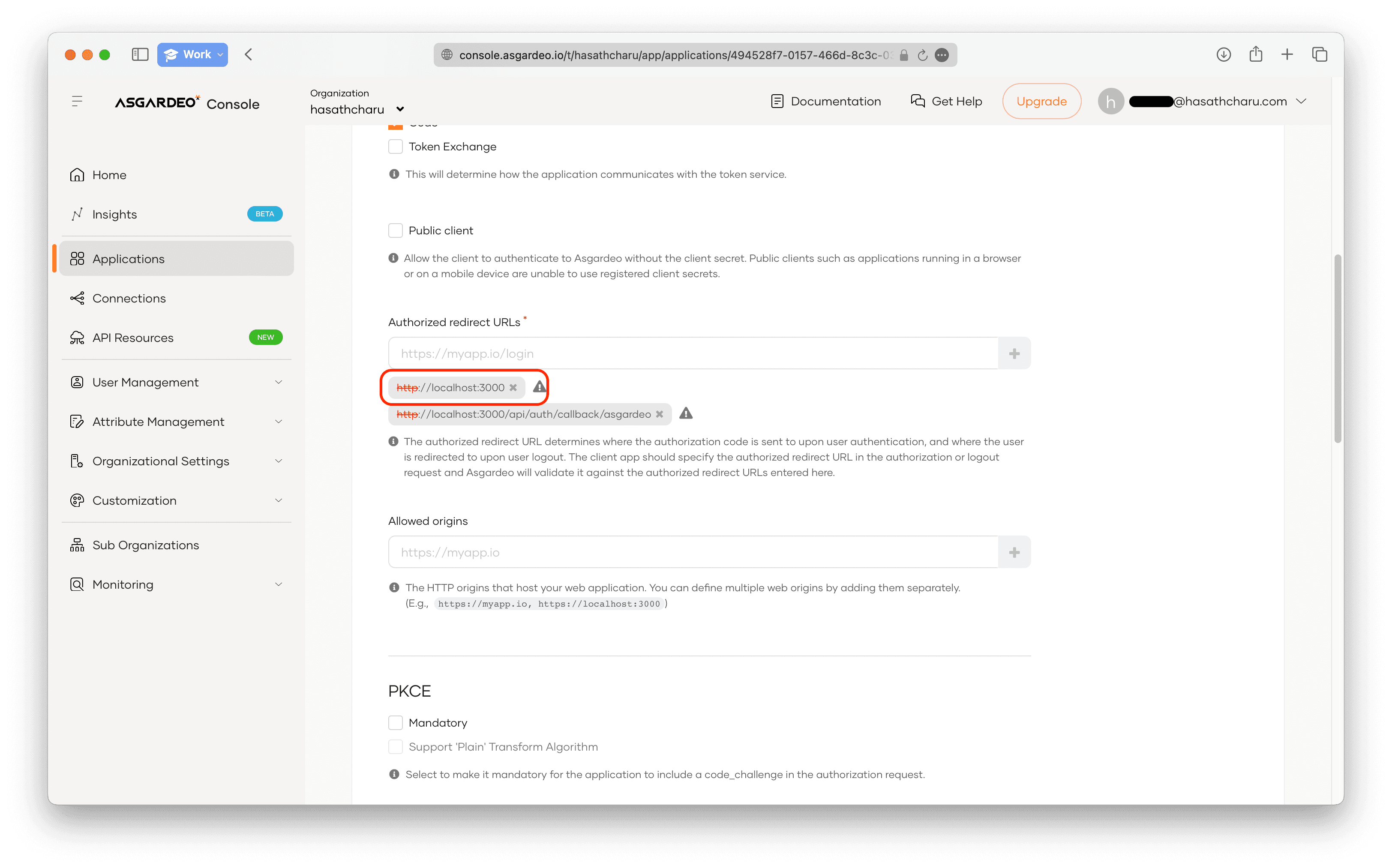
Adding another callback URL
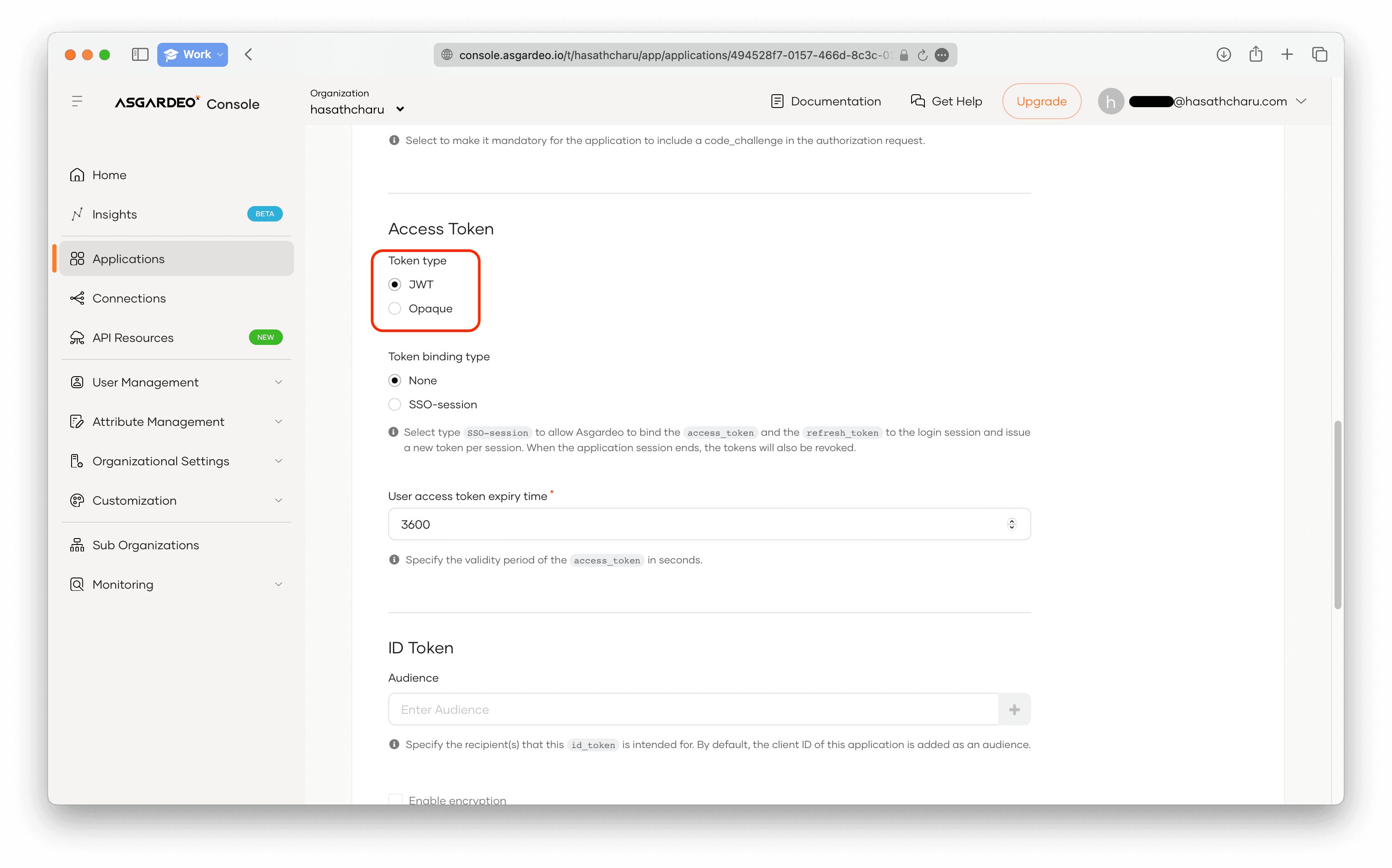
Setting token type to JWT
Updating changes
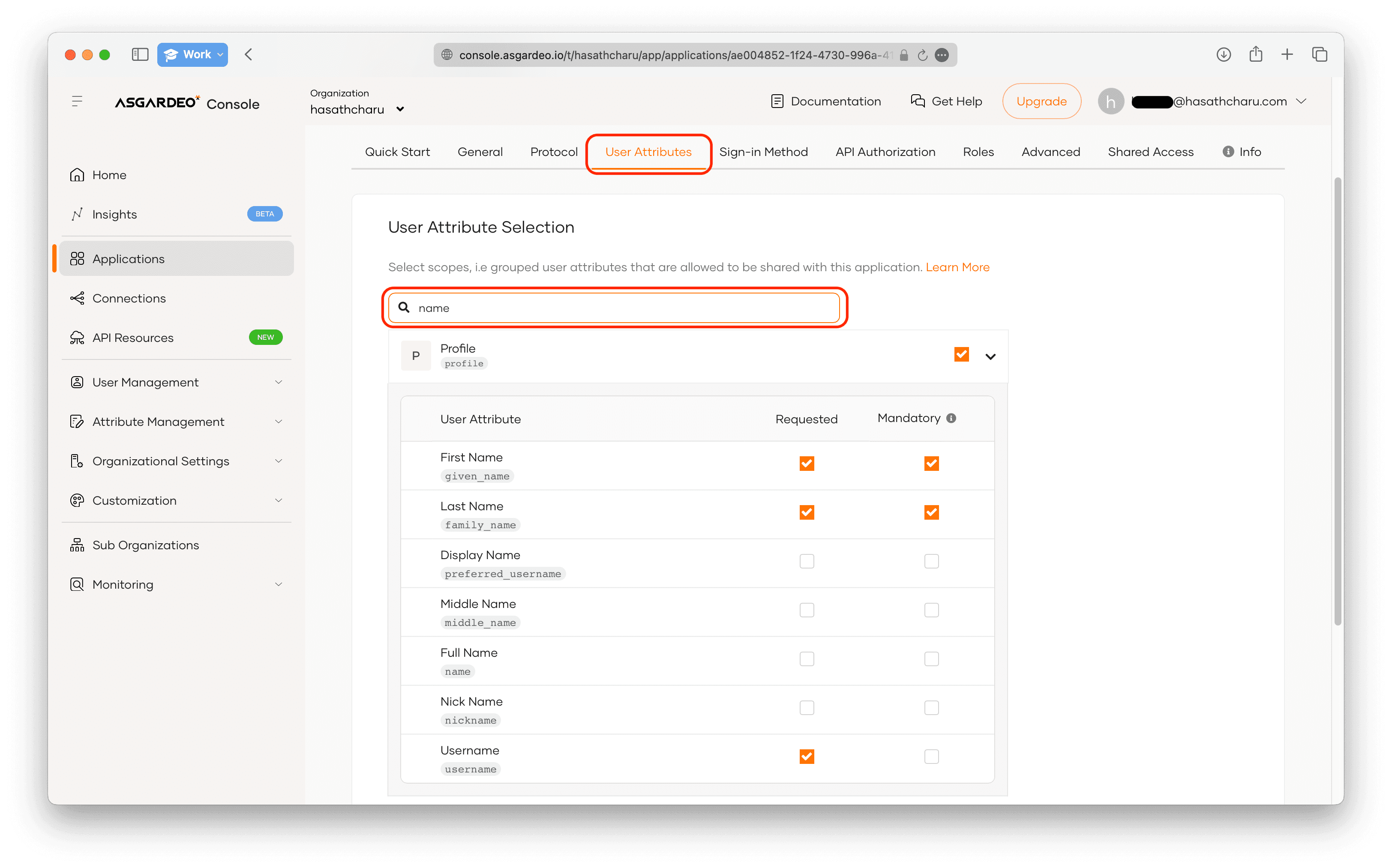
Another step is to set the User Attributes. By doing this, you will get these data to your application when the user signs in with Asgardeo. This is useful for us to confirm whether we have signed in successfully. Here, you need to tick First Name and the Last Name, or any other property you may like.
Configuring returned user attributes
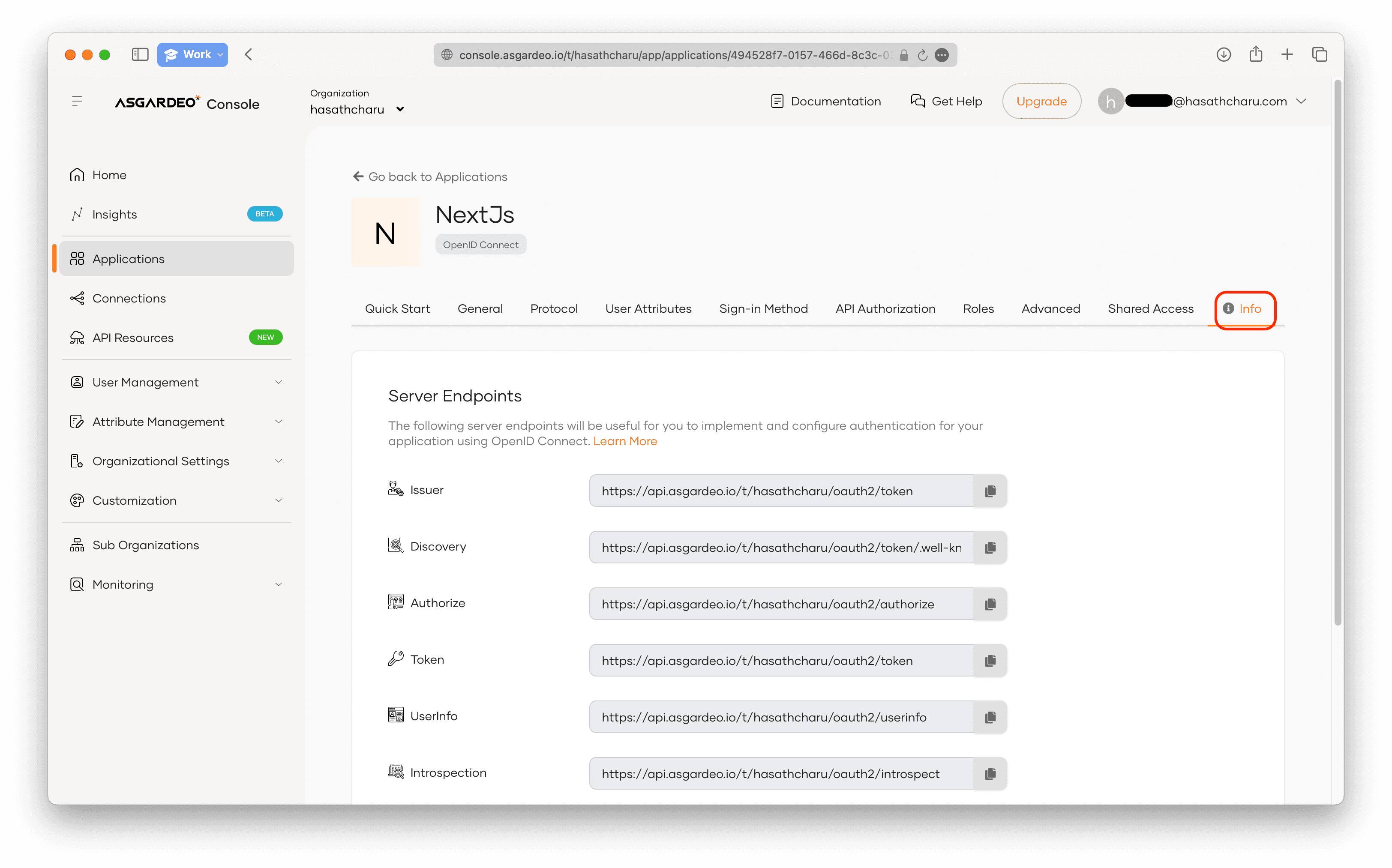
Once you are done with that, head to the Info tab to see some important URLs. We'll need those later.
Info tab
Another important thing, remember to create a user in the user management to test a user.
Once you are done with these configurations, we are all set! Let's proceed to step 2.
Step 2
The next step is to just create a Next.js project. If you already have, then that's awesome. If you don't, then just create one using the below command.
npx create-next-app asgardeo-next
Once you are done with that, we need to install a library called Next Auth, which is a library that provides authentication for Next.js.
npm i next-auth
So that's step 2.
Step 3
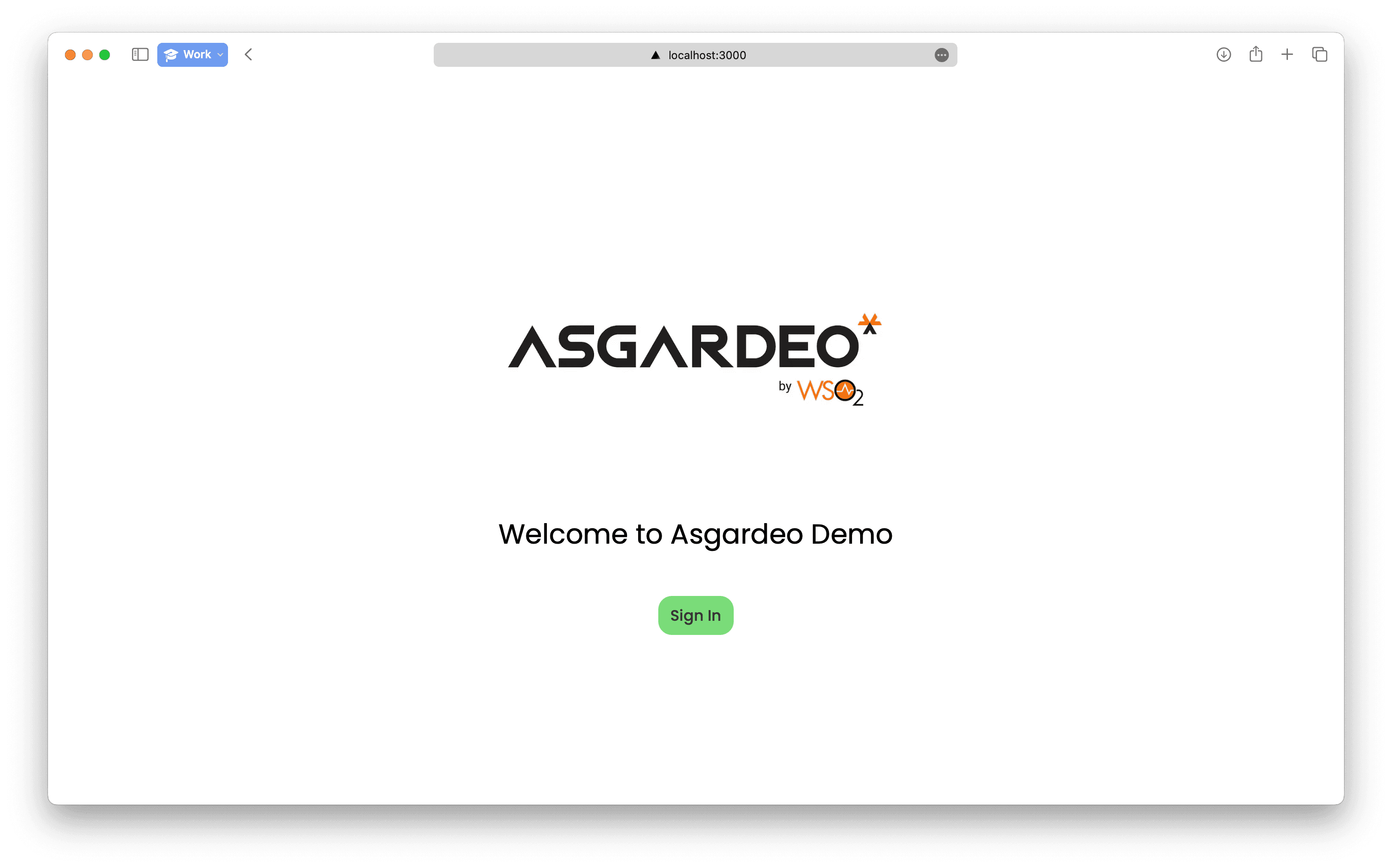
Then, we can just remove the boilerplate code from the root page.tsx file and put your own code. My index page looks like the one below. Feel free to stylize in whatever way you please.
App Index Page
I also made another page, which is the dashboard page. Later, we will protect this route. For now, it looks like the one below.
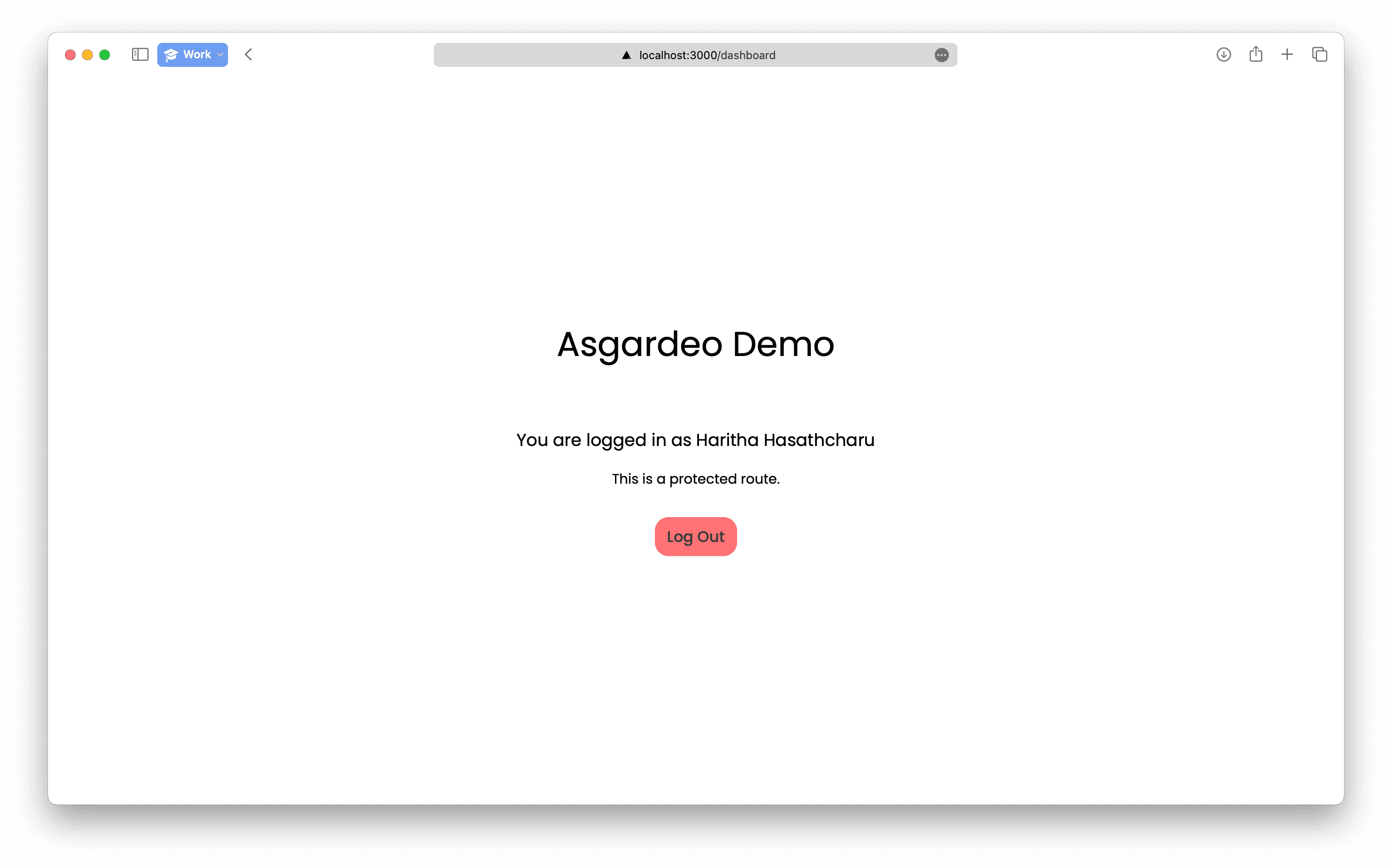
Dashboard Page
So now that we have created the basic UI, let's go ahead and implement auth to our application!
Step 4
First we have to create the environment variables. Go ahead and add these in the .env located at the root of your project.
NEXTAUTH_SECRET=haa+lsdkjfjl/lksdjf/sldkfjsdflk=
OAUTH_CLIENT_ID=203jfwiejf0sidjf0ij0ijdf
OAUTH_CLIENT_SECRET=02i3ejfowiej0fi2jef02iejf_jsodijfos
OAUTH_ISSUER_URL=https://api.asgardeo.io/t/hasathcharu/oauth2/token
OAUTH_USERINFO_URL=https://api.asgardeo.io/t/hasathcharu/oauth2/userinfo
OAUTH_WELL_KNOWN_URL=https://api.asgardeo.io/t/hasathcharu/oauth2/token/.well-known/openid-configuration
You have to fill the details that you got from the previous step.
Next, we have to create a folder in the app folder named api, and within it, an auth folder, and then a catch all folder named [...nextauth] so your folder path should look like /app/auth/api/[...nextauth]. If you are unclear about this, please refer the source code. Next, create a route.ts file within the /app/auth/api/[...nextauth] folder and paste the following code.
import NextAuth from 'next-auth/next';
import { authOptions } from '@/app/lib/auth';

const handler = NextAuth(authOptions);
export { handler as GET, handler as POST };
Then you need to create another folder called lib and within it, create an auth.ts file. This houses the authOptions variable.
import { NextAuthOptions } from 'next-auth';
export const authOptions: NextAuthOptions = {
    providers: [
        {
            id: 'asgardeo',
            name: 'Asgardeo',
            clientId: process.env.OAUTH_CLIENT_ID,
            clientSecret: process.env.OAUTH_CLIENT_SECRET,
            issuer: process.env.OAUTH_ISSUER_URL,
            userinfo: process.env.OAUTH_USERINFO_URL,
            type: 'oauth',
            wellKnown: process.env.OAUTH_WELL_KNOWN_URL,
            authorization: {
                params: { scope: 'openid profile' },
            },
            idToken: true,
            checks: ['pkce', 'state'],
            profile(profile) {
                return {
                    id: profile.sub,
                    name: profile.given_name + ' ' + profile.family_name,
                    email: profile.username,
                };
            },
        },
    ],
    pages: {
        signIn: '/auth/signin',
    },
    // debug: true,
};
I am saving the profile attributes, the id, name, and the email in the session through the profile function. Here, you need to use the enabled user attributes in the last step to get the first name and the last name. Note that the first name is sent as given_name and the last name is sent as family_name by Asgardeo for some reason.
Here, you can uncomment the debug:true option to enable debugging in the console. Then the last one, you need to create a middleware.ts file in the root of the project to block the routes to the /dashboard if the user is not signed in. You can paste the following code there. Here, the matcher is used to match the routes that needs to be protected.
export { default } from 'next-auth/middleware';
export const config = { matcher: ['/dashboard'] };
You can also see that I have configured a custom sign in page and that is an optional step. I just thought that when the middleware catches a non-signed in user trying to access a protected route, they are shown this unbranded stock sign in page which I thought was too generic.
Step 5
In this step, we will be configuring the hard coded pages we created. From Next.js 13 onwards, all pages in the App Router are Server Components. Therefore, when we develop functionalities, we have to separate client functionalities from the server components in to their own client components that start with 'use client' directive. With that in mind, this is the code for the root page.tsx file.
import Image from 'next/image';
import ActionArea from './ActionArea';
import { getServerSession } from 'next-auth';
export default async function () {
    const session = await getServerSession();
    return (
        <div className='grid min-h-screen place-items-center'>
            <div className='grid justify-items-center text-center'>
                <Image
                    src='/asgardeo.png'
                    alt='Asgardeo Logo'
                    height='200'
                    width='500'
                />
                <h1 className='m-10 text-[2rem]'>Welcome to Asgardeo Demo</h1>
                {session ? <ActionArea dashboard /> : <ActionArea />}
            </div>
        </div>
    );
}
Here, the ActionArea component is the interactive part. We use the Next Auth's getServerSession function to get the user session data from the server side. If a session is present, that means the user is logged in, otherwise, the user is logged out, hence we show them the Sign In button. The buttons are in the ActionArea component, which is a client component. Here is the code for the ActionArea component.
'use client';
import { signIn } from 'next-auth/react';
import { Button } from 'mochi-ui';
import { useRouter } from 'next/navigation';
export default function ({ dashboard }: { dashboard?: boolean }) {
  const router = useRouter();
  return (
    <>
      {dashboard ? (
        <Button
          title={`Dashboard`}
          onClick={() => router.push('/dashboard')}
          size='large'
          color='secondary'
        />
      ) : (
        <Button
          title={`Sign In`}
          onClick={() =>
            signIn('asgardeo', {
              callbackUrl: 'http://localhost:3000/dashboard',
            })
          }
          size='large'
        />
      )}
    </>
  );
}
Then let's head on to the dashboard page. The dashboard page displays the user name that is fetched from Asgardeo, and a logout button. Here, the logout button is moved to another LogoutButton client component which accepts the client_id.
import { getServerSession } from 'next-auth';
import { authOptions } from '@/app/lib/auth';
import LogoutButton from '../ui/LogoutButton';
export default async function Page() {
    const session = await getServerSession(authOptions);
    return (
        <div className='grid min-h-[100vh] place-content-center text-center'>
            <h1 className='text-[2.5rem]'>Asgardeo Demo</h1>
            <br />
            <br />
            <h1 className='my-5 text-xl'>
                You are logged in as {session?.user?.name}
            </h1>
            <h1 className='text-l'>This is a protected route.</h1>
            <br />
            <div>
                <LogoutButton client_id={process.env.OAUTH_CLIENT_ID} />
            </div>
        </div>
    );
}
The LogoutButton component looks like this.
'use client';
import { Button } from 'mochi-ui';
import { signOut } from 'next-auth/react';
import { useRouter } from 'next/navigation';
export default function ({ client_id }: { client_id: string | undefined }) {
  const router = useRouter();
  return (
    <Button
      size='large'
      title='Log Out'
      color='danger'
      onClick={async () => {
        await signOut({ redirect: false });
        router.push(
          `https://api.asgardeo.io/t/hasathcharu/oidc/logout?client_id=${client_id}&post_logout_redirect_uri=http://localhost:3000`
        );
      }}
    />
  );
}
The signOut() function clears the session cookies from the Next.js application, however, keep in mind that it doesn't sign you out from Asgardeo. In order to sign out from Asgardeo, you need to redirect the user to the Asgardeo page, here I have set the callback URL as http://localhost:3000 so that the user will come to the root page once they have signed out from Asgardeo.
You can remove the last router.push() if you don't want to logout from Asgardeo when you logout of the application. If you are only having this application that uses the Asgardeo IDaaS, then it makes sense to logout from Asgardeo too. Otherwise, you can just omit that.
Conclusion
So we have reached the end of this tutorial, and I am really happy that I was able to do this for the community. You can go to the next tutorial to see how to connect your Spring Boot application with Asgardeo to enforce role-based access control (RBAC).
Sources
- https://medium.com/@omalwijegunawardana/authenticate-next-js-applications-with-asgardeo-part-1-eb02fbcf7fb9
- https://medium.com/@areebniyas/implementing-sign-out-with-asgardeo-when-using-next-auth-in-your-next-js-app-cdcb569e49e2
Enjoyed this? Leave a like and share it!
